
Import & export
Your data leaves when you say so.
CSV for a spreadsheet. JSON for the full profile. A password when you want one. And a preview before an import touches a single reading.
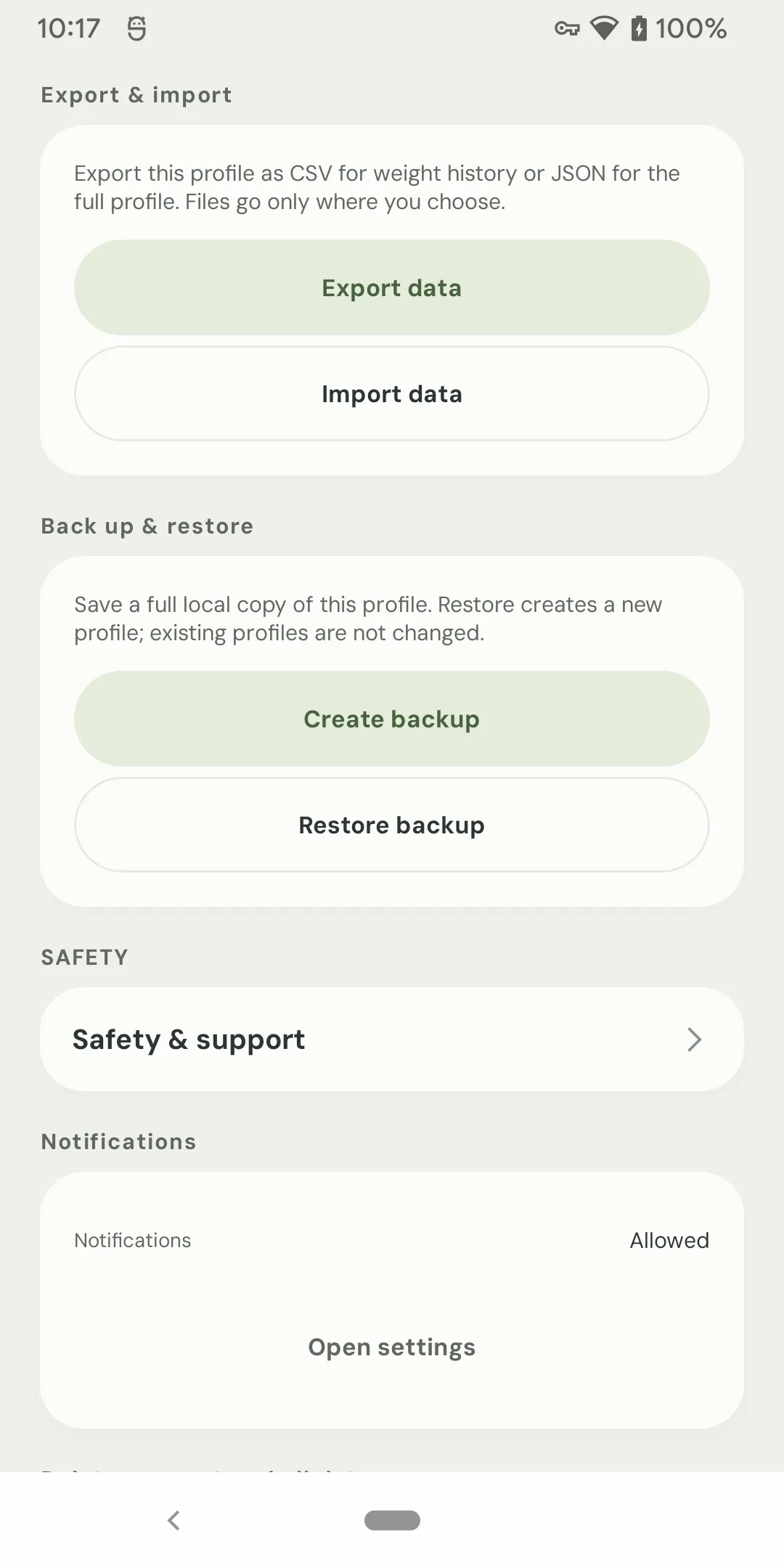
Export
Take a copy you can actually use.
Choose the format, the date range, and where the file goes. The app does not upload it.
CSV — weight history
A simple table for a spreadsheet or another app: date, time, weight, unit, notes, and context.
JSON — full profile
A structured export of the profile, with a date range and an optional extra display-weight column.
Password protection
Protect a CSV or JSON export with AES-GCM. The password cannot be recovered; keep it safe.
Import
A preview before the commit.
Import is not a blind overwrite. You see the rows, the errors, and the duplicates before anything changes.
Choose a file
Pick a Weight Track Assistant CSV/JSON export or a CSV from another app.
Preview first
See valid rows, row errors, duplicates, and the date range before importing.
Map the columns
Choose date and weight columns; optionally map time, unit, note, meal, and timezone.
Review duplicates
Skip, keep both, or merge. Apply one choice to all, then adjust individual rows.
Pick a target
Import into a new profile or merge into the current one. Merging backs up the profile first.
Import & report
Invalid rows must be fixed or removed. Save the error report if you need to edit outside the app.
Bring data in
CSV from another app is welcome.
Already have a weight history in a spreadsheet or another app? Map its date and weight columns, set a unit and timezone if the file lacks them, and review the preview.
- Weight Track Assistant CSV or JSON exports are recognized directly.
- Other apps’ CSVs can be mapped column by column.
- Rows with errors are reported before import; save the report to fix them.
- Import into a new profile to keep the current one untouched.
Back up before you merge.
Merging into an existing profile requires a pre-import backup. Existing readings are not replaced; duplicates follow your review choices. Cancelling makes no changes.
Full backup
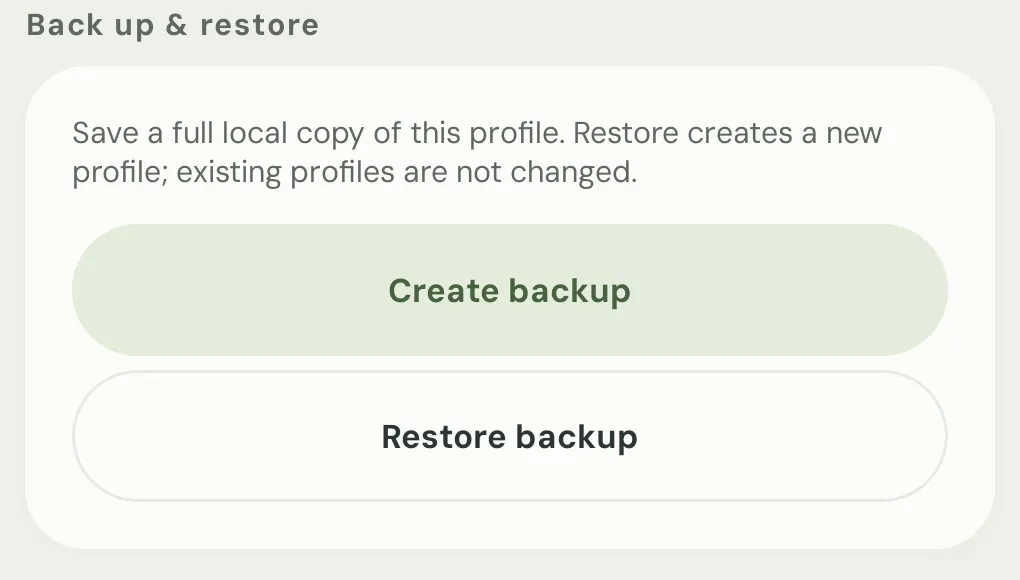
A local .zip for the whole profile.
The full backup includes the profile and photos. Restore creates a new profile; existing profiles are not changed.
- A local .zip file — nothing is uploaded.
- Includes progress photos.
- Not encrypted; store it somewhere you trust.
- Restore creates a new profile, so you can compare before deleting anything.
Scope
What JSON import covers — and what it does not.
Be precise about the format. It saves time and prevents a disappointing restore.
JSON import restores
- Weight history.
- Profile details.
- Delete markers from the export are skipped.
Use full backup for
- GLP-1 records.
- Nutrition, hydration, and workouts.
- Body measurements and progress photos.
Import & export questions.
Do I need to export/import to update to 4.2?
What can I export?
What can I import?
How are duplicates handled?
Does JSON import restore everything?
Is the full backup encrypted?
Can I undo an import?
Does the app upload my export?
Keep exploring
Import & export
Your record. Your file. Your choice.
CSV, JSON, password protection, column mapping, duplicate review, and a local backup — all on your device.
- 1M+ installs since 2013
- Current version 4.2
- No account required
- Free on Android